Connecting AI Clients
Your answers come from the AI client you already use — NeatContext just hands it the context you selected. There is no model, base URL, or API key to set up in NeatContext.
Supported clients
- Claude Code (CLI)
- Claude Desktop (uses its built-in Claude Code)
- Codex CLI
- ChatGPT Desktop (uses its built-in Codex)
Each client has a card in a Context's Connect this context panel, with a readiness hint: Ready to connect, …not found (the client isn't installed), or Build required (only in a source build).
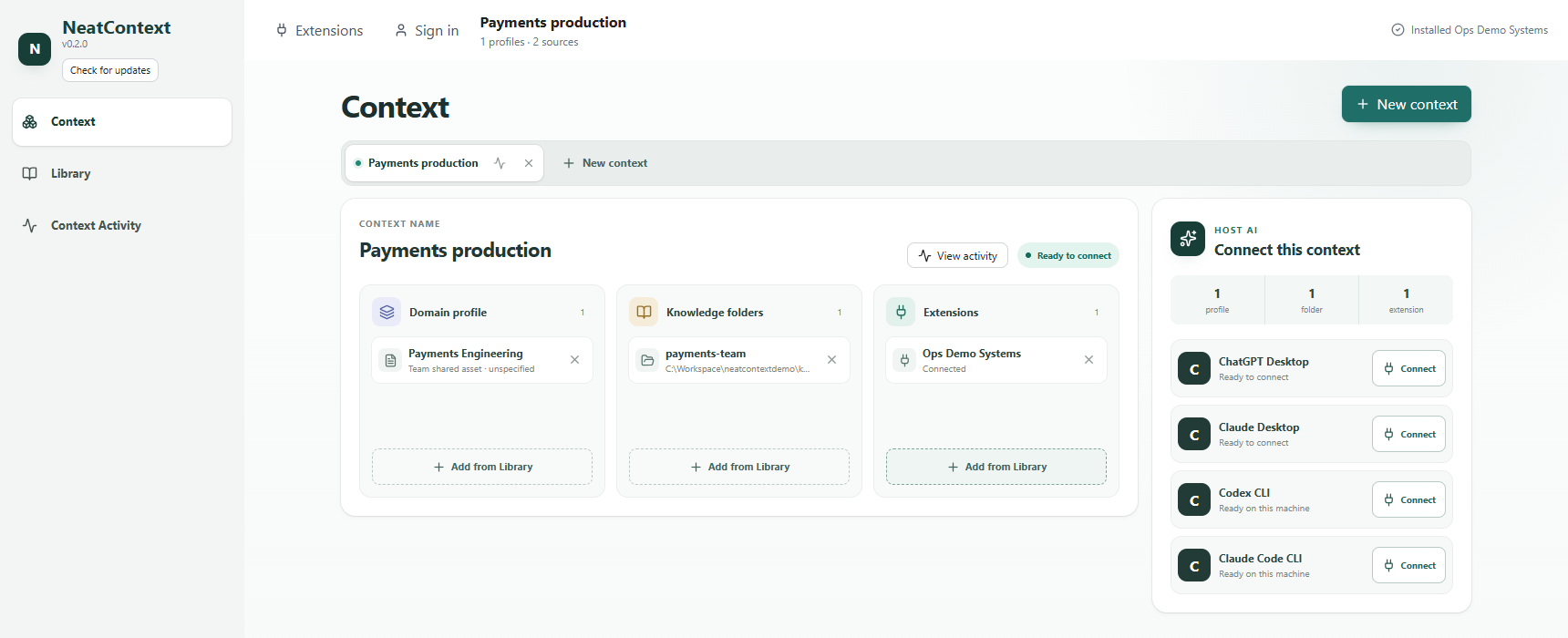
Connect a client
- Open Contexts and select the Context tab you want to use.
- Add its domain profiles (mark one active), knowledge folders, and any extensions.
- In Connect this context, click Connect on your client's card.
- If the client asks, trust the folder it opens and approve the
neatcontexttools. - Ask your question in the session that opens.
Every Connect opens a new session — it does not reopen a past conversation. To use a different Context, select its tab and click Connect again.
Ask your question
Ask your question normally in the session NeatContext opened. Your AI client reads
the Context's profile, searches its knowledge folders, and calls its extension
tools on its own, then writes an answer that ends with a ## Sources list of
the exact files and tools it used. Open a source to check the answer against your
own document.
If you change a connected Context (add a profile, folder, or extension), just ask your next question — the client picks up the change automatically. You only need to Connect again to start a session for a different Context.
If you're looking for a "connect your model" step, there isn't one — the connected AI client brings the model.