Contexts
A Context is the unit of work in NeatContext: a named workspace that selects a set of domain profiles, knowledge folders, and extensions for one operational scope — and then hands that selection to the AI client you connect. Each Context lives in its own tab across the top of the window.
NeatContext runs no chat and no model of its own. A Context is configuration, not a conversation: you build it here, then connect an AI client to it and do the actual work there. See Connecting AI Clients.
The Context page at a glance
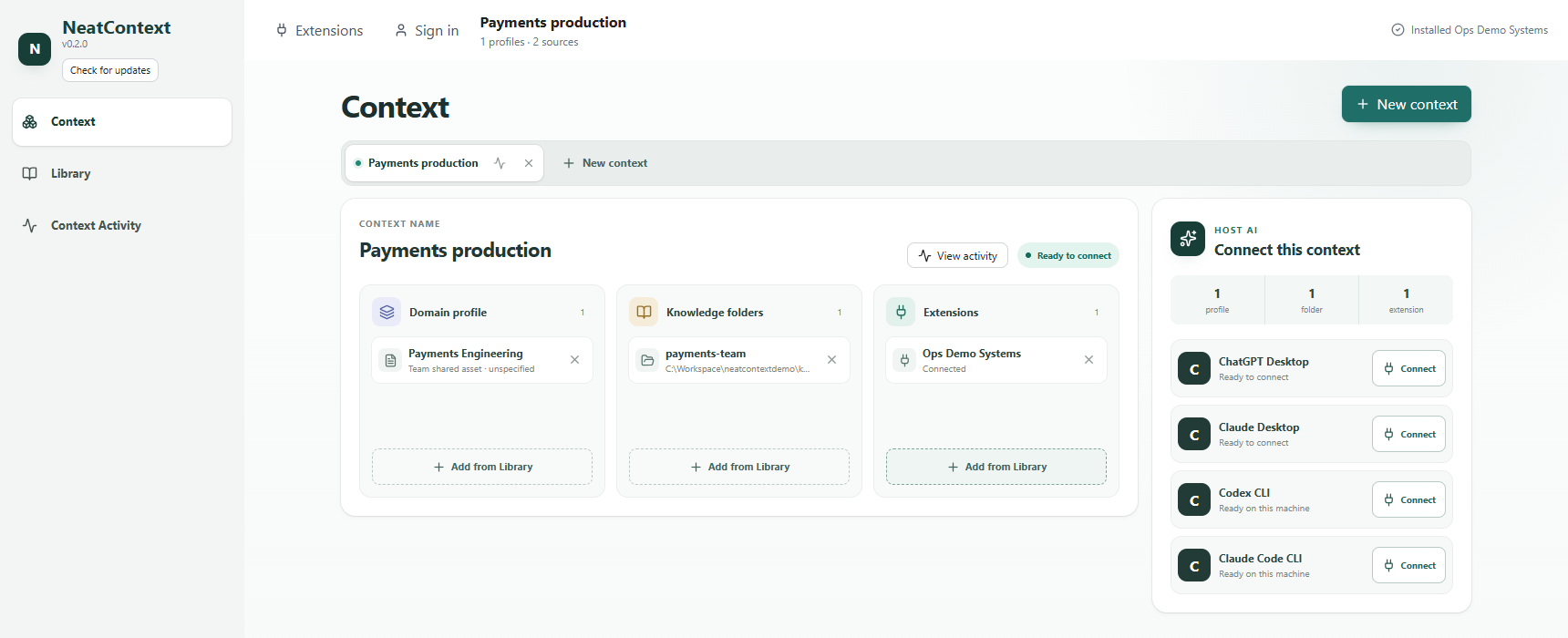
- Tab strip (top) — one tab per Context, plus a + button for a new Context.
- Selection panels — this Context's Domain profiles (one marked active), its Knowledge folders, and its Extensions. Each panel has an Add from Library control; nothing here is created from scratch — Contexts select resources that live in your Library.
- Connect this context — a card per supported AI client (Claude Code, Claude Desktop, Codex CLI, ChatGPT Desktop) with a Connect button and a readiness hint.
- View activity — opens this Context's activity log.
You author profiles, link knowledge folders, and install extensions in the Library and Extensions pages. On the Context page you only select from what already exists there.
Creating and naming Contexts
Click the + at the end of the tab strip to add a Context, and rename it to the scope it covers (e.g. Payments production, Identity platform). A Context starts empty; add profiles, folders, and extensions from the Library.
Because selection is per-Context, changing one Context never disturbs another — that is what lets one tab be Payments and another Infra at the same time.
Selecting resources
- Domain profiles — Add from Library, then click a profile to make it the active one. A Context can hold several profiles but exactly one is active; the active profile is the primary behavioral guide the connected client reads.
- Knowledge folders — Add from Library to attach folders the client will search in place.
- Extensions — enable the read-only connectors this Context should offer. Only enabled, trusted or installed extensions are handed off.
Remove a resource from a Context with its ✕ — this only detaches it from this Context; the resource stays in your Library and on disk.
Connecting a client to a Context
In the Connect this context panel, click Connect on your client's card. A new session opens for this Context. Full steps and what each client does are in Connecting AI Clients.
Two things to know:
- You can edit a connected Context. Add or remove a profile, folder, or extension and just ask your next question — the client uses the change with no reconnect.
- Switching tabs doesn't switch the session. Selecting a different Context tab doesn't change an open session. To work in another Context, click Connect on it to open a new session.
One incident, two Contexts
Per-Context selection is what makes NeatContext's core trick possible: keep Team A's profile + runbooks in one Context and Team B's in another, connect a client to each, and ask both the same question — each correctly reaches its own right action, with no swapping context in and out. The Incident Analysis walkthrough is built around exactly this.
Deleting a Context
Click the ✕ on the tab and confirm. Deleting a Context removes its selection and its activity log. The profiles, folders, and extensions it used are not deleted — they stay in your Library for your other Contexts.
The number of Contexts, and of knowledge folders and enabled extensions per Context, depends on your plan — see neatcontext.com/pricing.