Domain Profiles
A domain profile is a Markdown file that tells your AI how your team (or service, or domain) thinks: what it owns, what it checks first, and what it must never do. It is the single highest-leverage piece of context you can add — the active profile of a Context is what the connected AI client reads first and treats as its primary behavioral guide.
Create or link a profile in the Library
Profiles live in your Library. Open Library → Domain profiles:
- New — creates a fresh profile from a starter template (Purpose, First Checks, Dangerous Actions) and opens it in the editor. The file is stored under NeatContext's personal Library.
- Import — links an existing
.md/.markdownfile from disk. The file stays where it is — NeatContext references it in place, so you can keep profiles in a git repo and share them with your team. Edits you make in NeatContext's editor are saved back to that same file.
A Team Library can also share read-only profiles; they appear in the list with a team origin. See The Library.
Select it into a Context
A profile only steers an answer once it is selected into a Context. On the Contexts page, under Domain profiles, choose Add from Library and pick the profile, then click it to mark it active.
A Context can hold several profiles but exactly one is active — the active profile is what the client reads as its guide; the others are attached and ready to switch to. The ✕ detaches a profile from this Context only; the file on disk and its Library entry are unaffected.
Selecting a profile attaches it to the Context you're on. Other Contexts are untouched — that's what lets one Context be "Payments" and another "Infra".
Edit a profile
In Library → Domain profiles, click Edit on a profile's card to open the editor:
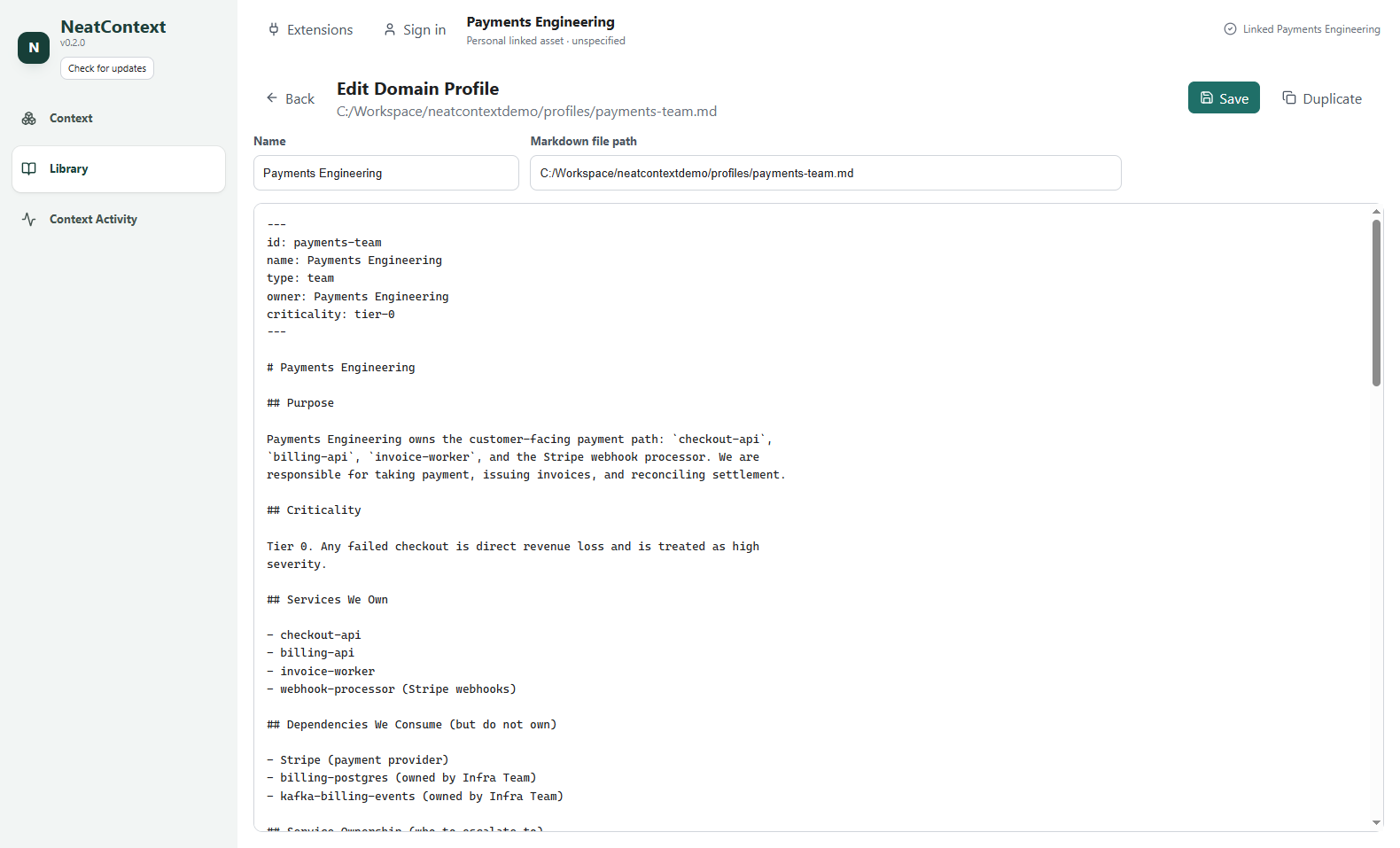
- Name and Markdown file path at the top.
- The raw Markdown below — what you see is exactly what the client reads.
- Save writes to the profile's file; Duplicate copies it as a starting point for a similar team. To delete a profile, use Remove on its Library card.
Anatomy of a good profile
Profiles start with optional YAML front matter for metadata, then free-form Markdown:
---
id: payments-team
name: Payments Engineering
type: team
owner: Payments Engineering
criticality: tier-0
---

# Payments Engineering

## Purpose
Payments Engineering owns the customer-facing payment path: `checkout-api`,
`billing-api`, `invoice-worker`, and the webhook processor.

## Services We Own
- checkout-api
- billing-api
- invoice-worker

## First Checks During an Incident
1. Read the incident and its timeline.
2. Did *we* deploy near the start time? Call the **deployments** extension's
   `list_recent_deploys` tool for our services and compare timestamps.
3. Still unclear? Call the **status** extension's `provider_health` tool to
   confirm the payment provider is healthy *before* blaming our code.
4. Pull the relevant runbook from the knowledge base and cite it.

## Tool Usage
- Use `list_recent_deploys` **only** for the services under *Services We Own*.
- Do not call `restart_service` at all — restarts require a human (see below).

## Dangerous Actions (do NOT do without approval)
- Do not restart invoice-worker during the 09:00–10:00Z settlement window.
- Do not touch pgbouncer or Postgres — that is Infra Team's surface; escalate.

## Response Style
- Separate confirmed facts from hypotheses.
- Cite the runbook you relied on.
The owner and criticality fields are surfaced as profile metadata. Beyond that,
the structure is yours — but the more concrete your domain knowledge, the more
accurately the AI behaves. Vague guidance produces vague, improvised answers;
specific, spelled-out knowledge produces repeatable, correct ones. The profiles
that work best are explicit about four things:
- Ownership — what is (and is not) this team's. This is what lets the AI correctly say "not ours — hand off" instead of guessing at a fix.
- Investigation order — the team's first checks, in order. The AI will actually follow them.
- Tool usage — which tools to call, in which situations, and in what order.
Don't just list the tools available; tie each one to a trigger and a step, e.g.
"when a deploy is suspected, call
list_recent_deploysfor our services first, then compare timestamps." Also state when not to call a tool. The more precisely you script this, the more reliably the AI calls the right tool at the right moment instead of improvising. - Guardrails — dangerous actions, stated as prohibitions. The AI repeats these as warnings at exactly the right moments.
The incident demo's two profiles are complete, realistic examples — including how they wire specific tools into the investigation steps — and are worth copying as a starting point.
A profile is read verbatim by the connected AI client, and is meant to be version-controlled. Never put credentials in it — extension secrets belong in the encrypted connection flow, not in a profile file.
Where profiles live
Profiles created with New are stored in your personal Library; imported profiles remain at their original path (shown in the editor). Either kind is a plain Markdown file you can open, diff, and version like any other text file — there is no lock-in format.