Using Extensions
Extensions give your AI tools: read an incident, search logs, list deployments, look up a service. Each extension is a small read-only connector that runs locally. Enable an extension and select it into a Context, and your connected AI client can use its tools — with your credentials kept encrypted on your machine, never exposed to the client. This page is about using extensions; to write your own, see Building Extensions.
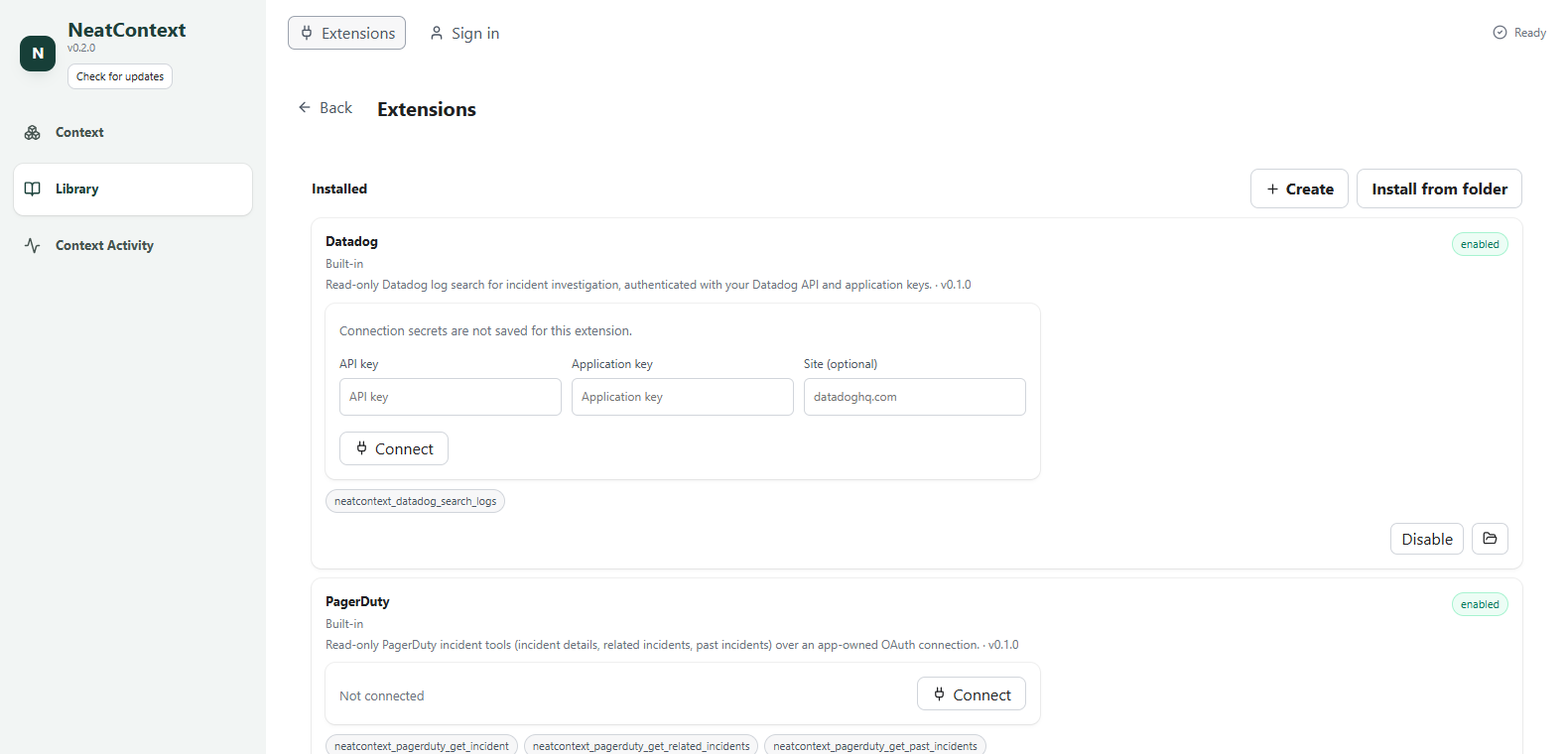
Open the Extensions page from the navigation:
What ships in the box
Two first-party connectors come bundled (marked Built-in; they can be disabled but not removed):
- PagerDuty — read-only incident tools (incident details, related incidents, past incidents), connected with OAuth. Step-by-step guide: Using the PagerDuty Extension.
- Datadog — read-only log search, connected with your Datadog API keys. Step-by-step guide: Using the Datadog Extension.
They are also reference implementations: click the folder icon on either card to open its source.
Beyond extensions, your connected AI client also reads the Context's domain profiles and searches its knowledge folders — those need no setup here.
Add an extension
- Click Install from folder.
- Pick the extension's folder — the one containing its
neatcontext-extension.jsonmanifest. - Review and install it. The new card appears in the list.

Each card shows the extension's name, description, version, its tools (hover one for its description), and controls: Enable/Disable, open folder, and — for extensions you added — remove. If you change an extension's files later, use its Reload button to pick up the change.
An extension runs on your machine with your user's permissions. Treat a third-party extension like any code you download: review it before adding (click the folder icon and read the server — good extensions are a single readable file). Only bundled first-party connectors are treated as fully trusted; prefer read-only connectors.
Connect an extension
Extensions that talk to a real service declare how they authenticate, and the card adapts:
-
No connection — nothing to configure. Local or unauthenticated systems; enable and go.
-
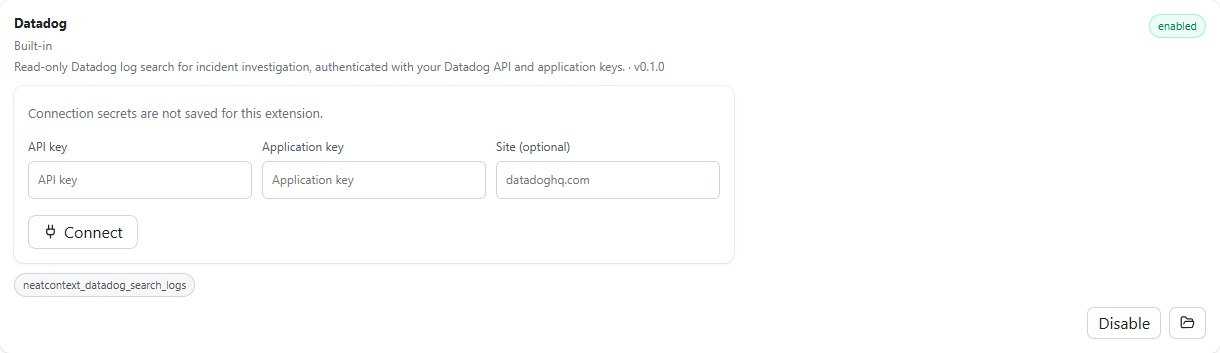
API keys — the card shows an inline form for the keys the extension declared. Fill it and click Connect:
-
OAuth — the card shows a Connect button that opens your browser on the provider's sign-in page. Approve, and NeatContext catches the redirect and stores the tokens (refreshing them automatically from then on):

Either way, credentials are encrypted and stay on your machine, and are never exposed to the AI client. Disconnect deletes the stored credentials.
Enable it and select it into a Context
Extensions are handed off per Context. Two things have to be true for a connected client to see an extension's tools:
- The extension is enabled on the Extensions page.
- It is selected into the Context under Extensions on the Context page.
If you ask something that needs an extension you haven't connected yet, your AI client will tell you to connect it first. Connect it in NeatContext, then ask again.
Create your own extension
There are two ways to create an extension:
-
The Create builder (no code) — the Create button opens a guided, four-step builder that generates a working, read-only connector for any JSON HTTP API:
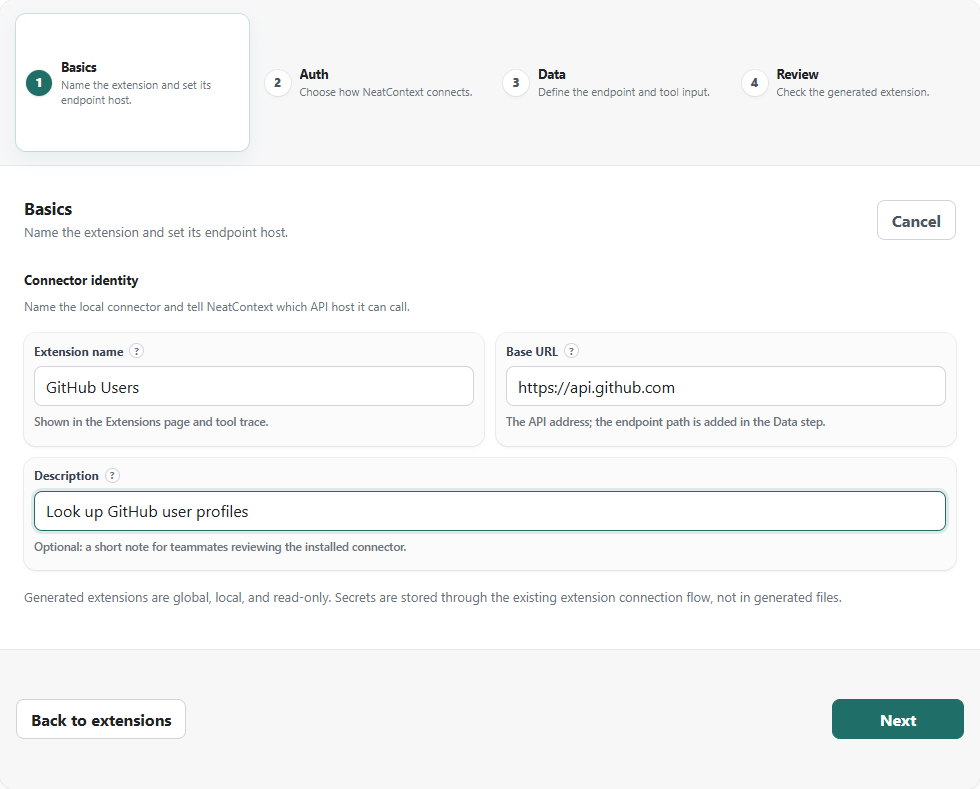
Basics (name + base URL) → Auth (none, API-key header, or OAuth) → Data (endpoint path + tool input) → Review → Generate extension. Every field has a ? next to its label with a detailed explanation and examples. For a full field-by-field walkthrough with a real API, see Create an Extension in the UI.
-
Write one yourself (code) — a single Node script gives you multiple tools and custom logic. See Building Extensions.
Either way the result installs like any other extension: it appears on the Extensions page, its folder is openable (a generated one is a nice starting point if you later want to hand-edit it), and secrets go through the normal encrypted connection flow, never into the generated files.
Seeing extensions in use
When a connected client calls an extension tool, the call is recorded in that Context's activity log — tool use is never invisible.
The number of enabled extensions depends on your plan — see neatcontext.com/pricing.
Next
- Try a complete, ready-made extension in the Incident Analysis walkthrough.
- Write your own connector: Building Extensions.